Browsing articles in "Excel"
Apr
4
2013

Calculating Payback Period in Excel

Payback Period - Question

Payback period in capital budgeting refers to the period of time required for the return on an investment to “repay” the sum of the original investment. For example, a $1000 investment which returned $500 per year would have a two year payback period. The time value of money is not taken into account. Payback period intuitively measures how long something takes to “pay for itself.” All else being equal, shorter payback periods are preferable to longer payback periods. Payback period is widely used because of its ease of use despite the recognized limitations described below. – via Wikipedia The Question…

Read the rest of this post…

Oct
23
2012

How to divide two arrays with SUMPRODUCT in Excel

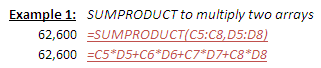
SUMPRODUCT to multiply two arrays

Way back in 2008, I wrote about using SUMPRODUCT to duplicate the functionality of SUMIFS which was introduced in Microsoft Excel 2007. SUMPRODUCT is a powerful excel function and is more commonly used to multiply two arrays. Let’s first understand the syntax of SUMPRODUCT. If you’re impatient, you can skip the tutorial and download the sample excel file from the end of this post. It contains solved examples with the related formulae. We’ll be using the following table in the example. Syntax: SUMPRODUCT(array1,array2,array3, …) Array1, array2, array3, …     are 2 to 255 arrays whose components you want to multiply and…

Read the rest of this post…

Aug
14
2012

Excel Tutorial: INDEX MATCH primer

INDEX MATCH Step 1

Two weeks, we looked at the syntax of VLOOKUP, INDEX and MATCH. Last weeks tutorial should have walked you through the basics of VLOOKUP. In this post, we’ll use a similar file from the VLOOKUP tutorial to find a value from the table using INDEX and MATCH. If you haven’t had a chance yet, please go through the VLOOKUP tutorial. Alternatively, if you’re ready to jump right into INDEX/MATCH, then let’s get started. Firstly, create the above table in Excel. I’ll be using Excel 2010 in my example. You can also download the examples file before you proceed. The file…

Read the rest of this post…

Aug
7
2012

Excel Tutorial: VLOOKUP primer

VLOOKUP Step1

Last week, I introduced you to VLOOKUP, INDEX and MATCH. In this post, we’ll use VLOOKUP to find a value from the table. Firstly, let’s create the above table in Excel. So whip up the installation of Excel you have. You can use either of Excel 2003, Excel 2007 or Excel 2010. I’ll be using Excel 2010 in my example. Download the examples file before you proceed. The file contains a Questions sheet which you can practice in and a Solutions sheet as well. If you haven’t had a chance to review the basic syntax of the functions, please do…

Read the rest of this post…

Aug
1
2012

Excel Tutorial: Introduction to VLOOKUP, INDEX and MATCH functions

Source table

Excel has several  lookup and reference functions. The main purposes of most of the plugins is to lookup some cell or cells from a set of data (usually presented in a table). Of these, the most popular ones are VLOOKUP, INDEX and MATCH. Usually INDEX and MATCH are used in combination as a replacement to VLOOKUP. This post will walk you through the basics syntax of the functions. In a future post, we’ll use them to lookup some values. VLOOKUP You can use the VLOOKUP function to look up the value of a cell from a range of cells, usually…

Read the rest of this post…

Jan
20
2009

Recover MS Word and MS Excel password Easily

free-word-excel-password-recovery

If you have lost your password for any MS Word or Excel document and are unable to recover it, try using this Free Word / Excel Password Recovery application. It’s a freeware product and all you need to do is install it, open the file that you need to recover. Choose the character set “a to z” and the expected lenght of your password and click GO. It will than try every possible combination that matches your password.  It might take a bit time depending on the characters and length of your password, the larger the character set, the longer…

Read the rest of this post…

Oct
23
2008

Random Group Generator in Excel

Excel

One requirement that you will see as part of a classroom environment is the necessity to create groups. One option is to perform this process manually. This is OK if you have ten people. When you have fifty or hundred, then you’re going to spend a long long time creating random groups! Dave Foord has created a very simple excel file that helps you do just this. All you need to do is enter the names of students in the sheet and specify how many you want in a group and the file will give you the lists and the…

Read the rest of this post…

Oct
16
2008

Excel Password Remover 2008 (Tool Thursday)

If you’ve forgotten the password to edit the Excel file Excel Password Remover 2008 can come to your rescue. Excel Password Remover is a FREE Excel add-in that removes/cracks sheet and workbook password protection in Excel®. This program will remove passwords of any length, also passwords containing special characters. However, it can’t remove file protection. Which means that you should be able to open up the Excel file whose password you need to remove. Download password.xla zipped: password.zip

Sep
18
2008

Goal Seek in Microsoft Excel

Continuing with our Excel Tutorials, in this article, I’ll take you through using Goal Seek in Microsoft Excel 2007. The function is same as that of earlier versions of Excel as well as Excel 2010. The screenshots below are taken in 2007. Goal Seek is yet another What-If Analysis Tool that comes inbuilt in Excel. Unlike data tables, which allow to change one or more variables to find how the output varies, goal seek allows you to “set” the value of the output at a particular value and find out what value of the input variable achieves that output. For…

Read the rest of this post…

Sep
11
2008

Two Variable Data Tables in Microsoft Excel Tutorial

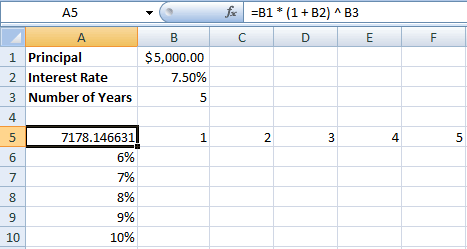
Three weeks back I covered creating Single Variable Data Tables in Excel. As promised, in this tutorial I will cover creating a two variable data table. This tutorial assumes that you have read the earlier one and are comfortable with creating a single variable data table. Create a new excel file as shown in the screenshot above. In cell A5, enter the formula =B1 * (1 + B2) ^ B3. As you can see, the $5000 invested at 7.5% for 5 years will give $7,178.15. A two variable data table gives you results by varying two different variables in the…
Read the rest of this post…

Pages:12»