During my regular work, I tend to face repeated issues of Excel hanging. This can be really frustrating because a stuck Excel means a painful wait for Windows to figure out what it wants to do with the process. Unfortunately, there isn’t much I can do about this because it is mainly due to addons that I have installed in Excel, which are required for me to do my job coupled with large files with tens of sheets and hundreds of rows with data.
In this scenario, the method that most Windows users do is open up Task Manager and kill the Excel task. This is a the easy method and works excellently if you need to do that once a day. However, if you’ve got to do this 10 times a day, then it’s time for a quicker and easier method.
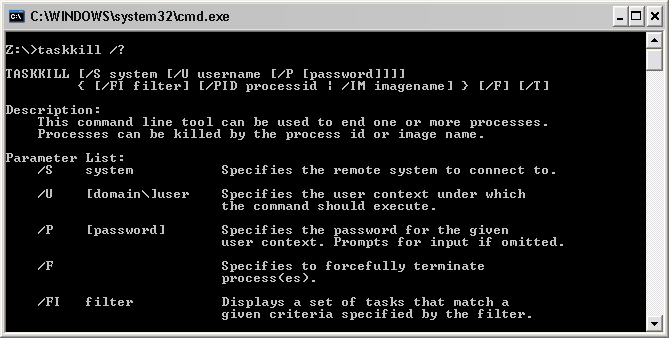
Enter taskkill, which is an inbuilt command line tool that can be used to kill one or more processes (tasks). You can do this by process id or image name. I personally prefer using image name, which is the actual name of the program. e.g. in our case this would be excel.exe.
The syntax to kill Excel using taskkill, you’ll need to use the following command. This command will tell taskkill to force kill excel.exe
Remember that when you run the above command, all Excel windows will be closed and non of your files will be saved.
You can speed this up even further by creating a .bat file with the above command. To do so, simply run notepad and copy paste this code into the notepad window.
Save this file with a .bat extension. In the future you can just double-click on this .bat file and the command will be executed.
You can use taskkill to kill just about any program. Just replace excel.exe with the full name of another process. e.g. to kill Firefox Portable, you would use:
Thanks for the Tip. This tip is excellent when Task Manager is not Loading as DOS gets loaded easily. I Usually Open Task manager and End the Process which is quite lenghty
We use cookies to ensure that we give you the best experience on our website. If you continue to use this site we will assume that you are happy with it.OkPrivacy policy






Thanks for the Tip. This tip is excellent when Task Manager is not Loading as DOS gets loaded easily. I Usually Open Task manager and End the Process which is quite lenghty