Uninstall programs on Mac – One such task
Learning how to uninstall programs on Mac is a very simple task, but this is something that confuses many users’ especially first timers. Removing programs from a Windows computer operating system based machine requires the user to go to the Add/Remove Programs in the Control Panel and the select the programs that the user which to uninstall. But in a Mac this process is very different.
Uninstalling programs is one such task, and there are two different ways in which you can achieve this. Remember that there are two kinds of programs that will be presented on your Mac namely bundled programs and unbundled programs.
The bundled programs can be removed very quickly because all their bundled files are in one single location. Unbundled programs will require some extra manual work of removing preferences, saved data and other such files. If you fail to remove these other files, they will take up unnecessary space on your hard drive and create clutter in the future.
As mentioned earlier, there are methods of removing programs and applications from your Mac. This article will give you details about both of these methods.
Method# 1 for Bundled Programs
There are few steps involved in this method, but this is more suitable for your bundled programs. Since all the additional files are in the same location it is easier to get rid all of them at the same time. Here are the steps for carrying out the same.
- Double click on the “Macintosh HD” button on the desktop. You will then see all the contents on hard drive in the form of Applications, System and Library.
- Double click n the “Applications’ icon”. This will show you all the applications and programs that are installed on your machine.
- Click on the applications that you wish to remove and drag them to the Trash Bin on your desktop. This will successfully uninstall them.
- Alternatively, you can press the Ctrl button when you are reviewing the list application. Click on the “Move to Trash” option and then select the applications that you wish to uninstall.
Please note that if you are using this method, you will need to go to their folders and move all those file to the Trash Bin separately as well. Leaving these files on the hard drive is not advisable.
Method # 2 for Unbundled Programs
This method will use some third party application or removal tool. This is more suitable for unbundled programs, as these tools remove all associated files and data as well. Most of these tools work in a similar fashion to the Add/Remove option on Windows operating system. You just view all the applications that are on your machine (bundled and unbundled) and then you proceed to remove them from a common and easy to use interface. You can even use the features of these tools to find all the associated files and then remove them easily.
About David
David is a freelance technical writer currently interested in registry cleaner reviews, Mac fix software and UK video chat websites.
Folx: Excellent Downloading Client For Torrent
I have a desktop and a netbook, both of which run Windows. For downloading regular files, I use Internet Download Manager and for torrents I use uTorrent. So far there has not been a single downloading client that competently manages regular files as well as torrent downloads. Mac users however do not face the same situation.
Mac users usually employ Transmission for torrent downloading and another client for regular file downloads. Now there is a freeware available to them that eliminates the need of having 2 programs installed for downloading. This solution is called Folx.

Folx is a freeware downloading client for Mac operating systems. In addition to having all of Transmission’s features, it is also a competent regular-file downloading client. As download managers work, Folx distributes the files into threads and downloads them from different sources; this gives us the maximum possible downloading speed. Downloads that get interrupted can be resumed at a later time. Regular file downloads can be paused as well.

When it comes to torrent downloading, we all know that port forwarding plays a key role. Folx supports choosing the maximum number of transfers, proxy servers, and NAT-PMP; all these things facilitate port forwarding and will help achieve maximum downloading speeds on torrents.

Apart from these features, downloads can automatically be recognized by Folx and added to the main download queue. Plus the files downloaded can be set up to be sorted into folders which we specify; this means we can set up Folx to place our audio downloads in one folder, our video downloads in the other folder, and so on.

Great Mac freeware applications are undoubtedly a rarity. Therefore all Mac users should get their hands on Folx as soon as possible.
About Umar
Umar is a professional content writer all the way from Pakistan. He loves discovering and reviewing new websites. He blogs at http://www.techcityinc.com
5 Free Mac Applicatons that are totally useful
Following are some of the best free applications for Mac that might come in handy for everyday routine work. You might also be interested in checking out my earlier post on Top 5 Free System Applications for Mac Os X, Best HD Video Players for Mac and Free File Compressors for Mac OS X.
The Unarchiver
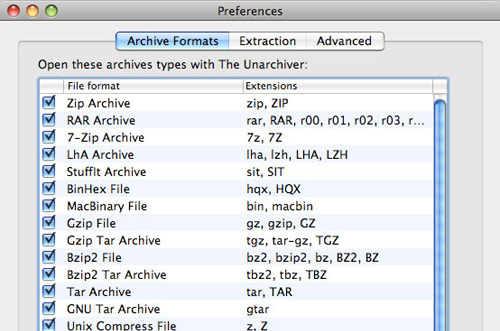
The Unarchiver is a much more capable replacement for “BOMArchiveHelper.app”, the built-in archive unpacker program in Mac OS X. The Unarchiver is designed to handle many more formats than BOMArchiveHelper, and to better fit in with the design of the Finder.

It can also handle filenames in foreign character sets, created with non-English versions of other operating systems. I personally find it useful for opening Japanese archives, but it should handle many other languages just as well.
Carbon Copy Cloner is a free Mac application to clone, synchronize and backup your files. CCC 3 features an interface designed to make the cloning and backup procedure very intuitive.

Key features include
- Complete, bootable backups
- Simple interface for indicating exactly what you want to back up
- Restore using the same process used for backup
- Backups are non-proprietary, so you can browse them or use them with Migration Assistant
- Fast, incremental backups copy only the items that have changed since the last backup
In addition to general backup, CCC can also clone one hard drive to another, copying every single block or file to create an exact replica of your source hard drive. CCC’s block-level copy offers the absolute best fidelity in the industry.
Stickies is one of my favortite desktop tools ever. It’s one the best ways to remind yourself of stuff that are must be done.

Unlike other applications it lets you arrange all your notes in thumbnail view and create short storyboards/comics or simply store your daily thoughts as searchable text. SketchBox is 100% free for you to use and if you feel like donating, you can do that by visiting their website.
An excellent tool for Mac that keeps all applications, widgets, preference panes and application plugins installed on your Mac up to date. It has the ability to help keep software like iTunes and Mac OS X updated at all times. A lot of applications on your Mac don’t include their own update checker and even if they do, they don’t work from a central place.

AppFresh also provides a central place to control the software updates available to your Mac, integrating most popular and most common update checking technologies such as Apple Software Update, Sparkle, Microsoft AutoUpdate, Adobe Updater, osx.iusethis.com and more.
SilverKeeper is a freeware application from LaCie that automates backups to external storage devices like hard drives, network drives, and other removable storage devices that have IDE, SATA, eSATA, IDE/ATA/ATAPI, SCSI, USB, or FireWire interfaces.

Almost any read/write device that can mount a writeable volume on the Macintosh Desktop can be used with SilverKeeper.
About Umar
Umar is a professional content writer all the way from Pakistan. He loves discovering and reviewing new websites. He blogs at http://www.techcityinc.com
Top 5 Free System Applications for Mac Os X
I earlier wrote about some of the most useful application you can download on your Mac free of charge. It includes Best HD Video Players for Mac, Free File Compressors for Mac OS X and Top 5 To-Do List Managers for Mac OS X. Today Im going to cover some of the most used system applications for Mac.
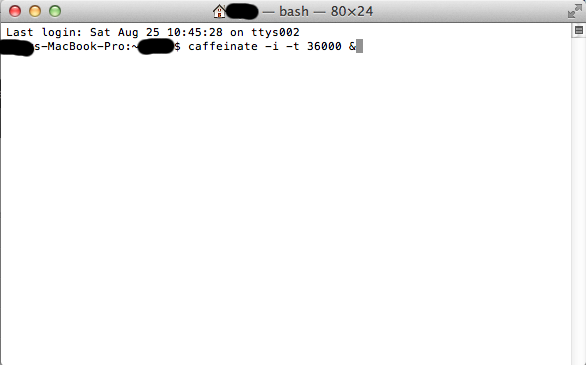
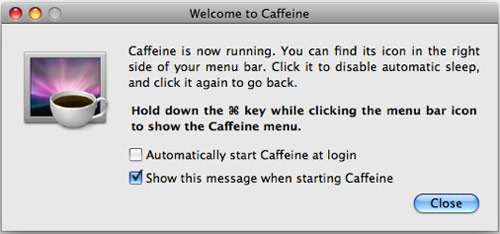
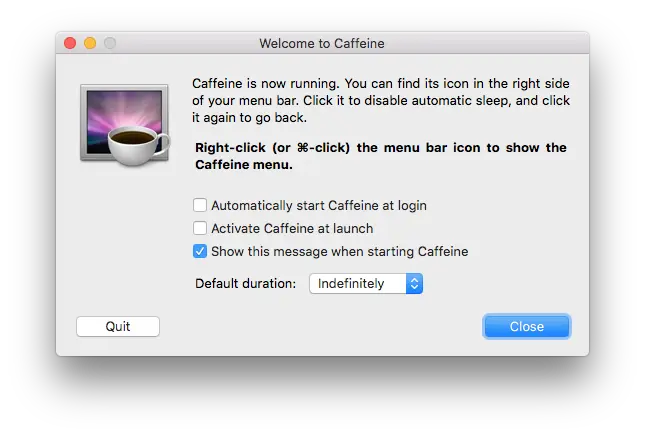
Caffeine is a tiny program for Mac that puts an icon in the right side of your menu bar. You can click it to prevent your Mac from automatically going to sleep, dimming the screen or starting screen savers. Click it again to go back. Hold down the Command key while clicking to show the menu.

Download Caffine
Carbon Copy Cloner is an ideal software for Mac that helps you Clone, synchronize, backup. Schedule your tasks. CCC 3 features an interface designed to make the cloning and backup procedure very intuitive. In addition to general backup, CCC can also clone one hard drive to another, copying every single block or file to create an exact replica of your source hard drive. CCC’s block-level copy offers the absolute best fidelity in the industry.

Key features include
- Complete, bootable backups
- Simple interface for indicating exactly what you want to back up
- Restore using the same process used for backup
- Backups are non-proprietary, so you can browse them or use them with Migration Assistant
- Fast, incremental backups copy only the items that have changed since the last backup
- Archival backup archives items that have been deleted from the source
- Support for block-level disk-to-disk clones
- Support for backing up across the network to another Macintosh
- Back up to hard drives or to disk images
- Schedule backup tasks on an hourly, daily, weekly, or monthly basis, or you can indicate that a backup task should run when the backup device is attached (e.g. an iPod). You don’t even need to be logged in for your backups to occur.
Download CCC
AppCleaner is a small application which allows you to thoroughly uninstall unwanted apps. Installing an application distributes many files throughout your System using space of your Hard Drive unnecessarily. AppCleaner finds all these small files and safely deletes them.

Simply drop an application onto the AppCleaner window. It will find for the related files and you can delete them by clicking the delete button.
Download AppCleaner
Deeper is an excellent Mac app that allows you to enable and disable the hidden functions of Finder, Dock, Dashboard, Exposé, Safari, Login window and many Apple’s applications.

Download Deeper
EverSave allows you to save all of your documents in a specific time interval or by changing the frontmost application. You can access EverSave easily on Mac OS X’s status bar. You won’t need to search for the application or to open it. EverSave always runs in the background. It is being controlled by five different tabs in a single window – this makes configuration quickly and user-friendly.

Download EverSave
If you enjoyed this post please feel free to subscribe today.
About Umar
Umar is a professional content writer all the way from Pakistan. He loves discovering and reviewing new websites. He blogs at http://www.techcityinc.com


(4.93 out of 5)
(3.69 out of 5)